The standup studio / Made for Quest
A little space.
To think together.
Bring the team together in a warm virtual studio. Meet in Quest, talk through the tickets, and put your Mac’s Linear tab on the shared wall.
Six places.
A shared perspective.
Designed for presence
Somewhere you
can settle in.
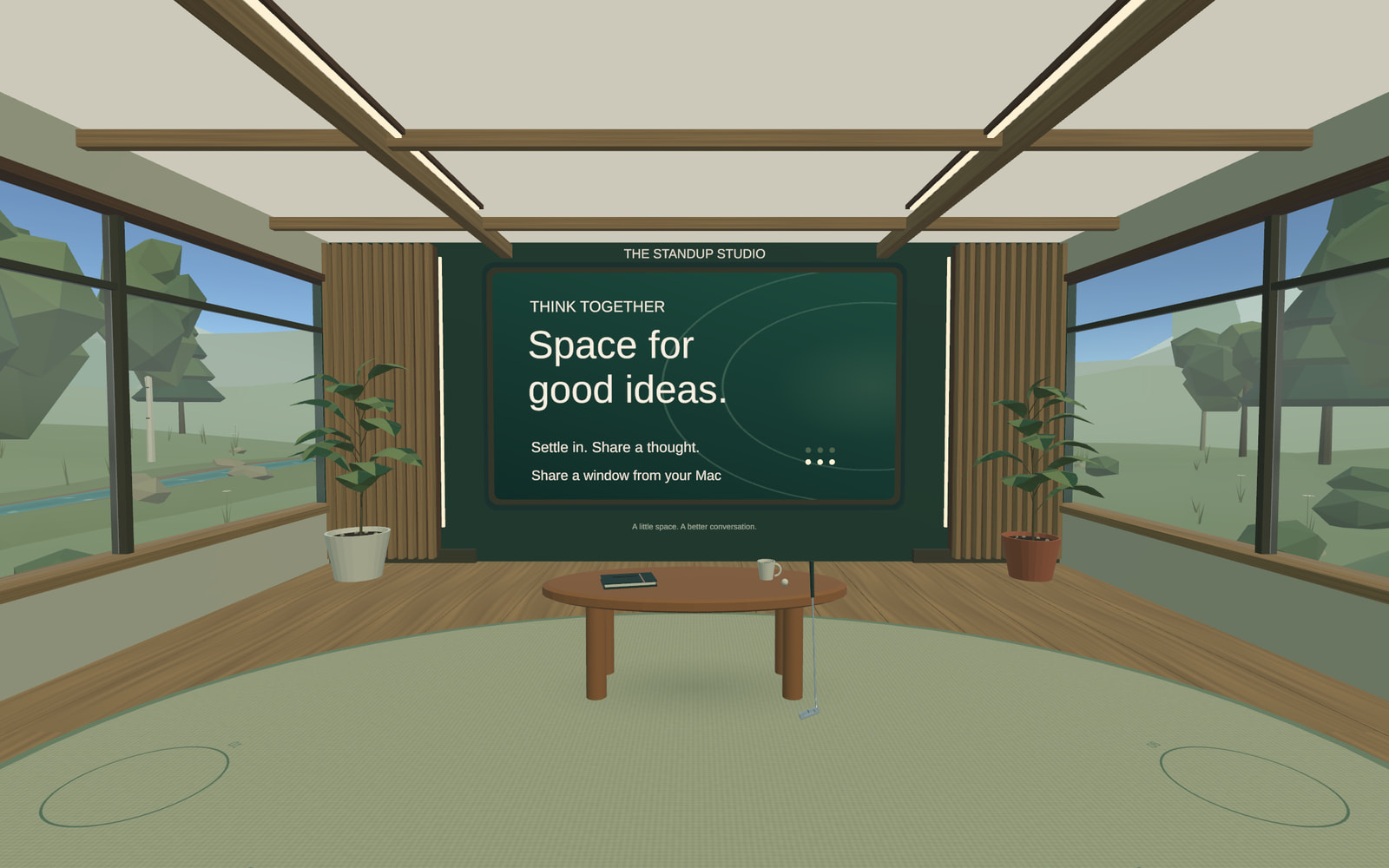
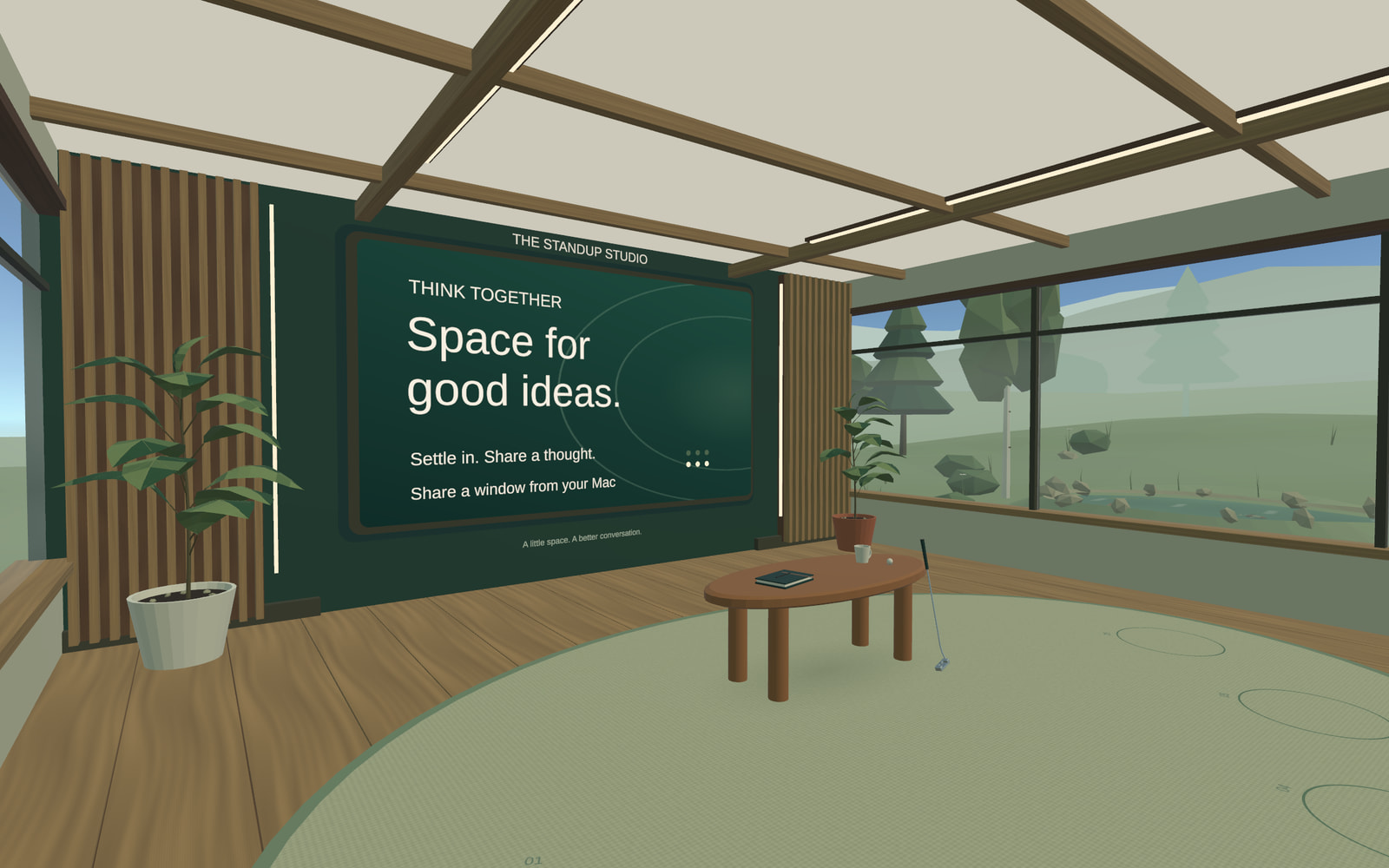
An oak floor. A little greenery. A view beyond the windows. A quieter setting for the conversations that keep a small team moving.
- 01 A place for everyone
- Room for up to six people, with avatars and a shared view of the presentation wall. Join from different locations using one invitation code.
- 02 Your work, in the room
- Mirror a selected Mac window or browser tab. Everyone sees the same tickets, while each person can enlarge their own view for reading.
- 03 A moment between meetings
- Look out over trees, a rocky stream and a pond. Pick up the putter for a few quiet shots while the team gathers.
A small studio,
with room for ideas.
Currently in development
Taking shape.
One standup at a time.
StandupVR is preparing for a Quest release. Room joining, screen sharing and controls have been tested with a headset. Full-team voice and performance checks are still in progress. A public store download is not available yet.
In the current build
- Rooms for up to six participants over the internet
- Eight-character room codes, assigned places and participant names
- Shared head motion and Meta avatar integration
- Hand pinch and Touch controller controls
- Mac tab or window sharing, with a personal enlarged reading view
- Optional room voice with a microphone mute control
- A small putting game, a stream and a pond with swimming fish
Before a wider release
- Complete store review and distribution setup
- Confirm voice direction and echo with multiple people
- Check sustained meetings across several headsets
- Complete Meta’s review for personal-avatar access
Free hosting can take about a minute to wake up. Room codes act as invitations; there is no separate account-based authentication. Video relay availability and free quotas limit some connections. Personal Meta avatar access is still pending approval.
Bring the team in
A headset each.
One shared room.
Teammates need the Quest app.
The presenter uses a Mac browser too.
A Quest headset and StandupVR for each participant, an internet connection, and a Mac if you want to present. No Mac app is needed for screen sharing.
- 01
Meet in Quest.
One person chooses “Host a room” and sends the eight-character code to the team. Everyone else chooses “Join room” and enters that code.
- 02
Connect your voice.
Choose “Join voice” in the room menu and allow microphone access. Use the microphone control to mute or unmute. Hands and Touch controllers both work with the menu.
- 03
Put the tickets up.
Open the screen-sharing page in your Mac browser. Enter the same code, then choose the Linear tab or window. Keep that browser session open while you present.
Ready to show your work?
Your Mac tab, on the studio wall.
Share only the tab or window you need. You stay signed in on your Mac; teammates see the shared image in Quest.
A few useful details
Before you
put it on.
Does everyone need the Mac app?
No. Each teammate joining in VR needs StandupVR on their Quest. Screen sharing runs in the presenter’s Mac browser at standupvr.quest/present/. The native Mac app is optional.
Who can share the Linear screen?
Anyone with the room code can present from a Mac browser. One person shares at a time. To hand over, stop sharing and leave the presenter session so the next person can connect with the same code.
How do I make small tickets easier to read?
Share just the Linear tab or window and enlarge its text on your Mac. In Quest, choose “Enlarge screen” for a closer reading view, then hide the controls and drag the image with a held pinch or trigger. “Whole screen” restores the full page. Your choice changes only your own view.
Do teammates need to sign in to my Linear?
No. The shared wall mirrors the tab you choose on your Mac as live video. Teammates see that image rather than opening their own Linear session. Keep unrelated or sensitive content out of the selected tab.
How private is the room code?
Treat the code as an invitation: anyone who has it can join or present, and there is no separate room sign-in. Share it directly with your team. The privacy notice explains room, voice and screen-sharing services.
Get in touch
A question about
StandupVR?
For questions about the project, privacy or data deletion, use the contact details below.
Fidel Seehawer · Germany
StandupVR support address. Please include “StandupVR” in your subject.